
To start printing with ezeep in your organization, you will receive an invitation via email from your ezeep Admin. Follow the steps below to accept the invite and get printing right away!
Depending on whether you are new to ezeep or already have an ezeep account with another organization, follow the appropriate steps to accept the invitation and start printing immediately!
New ezeep account:
- Open your email with the invitation to ezeep
- Click on the link in it to accept the invitation
- Click on “Create a new account” and follow the instructions
- Now you can select your preferred login method: Choose email address/password, Microsoft, Google or Apple login.
You will use the method you have chosen to log in to your ezeep portal, the ezeep print app for Windows or MacOS or the ezeep printer app for mobile devices in the future.
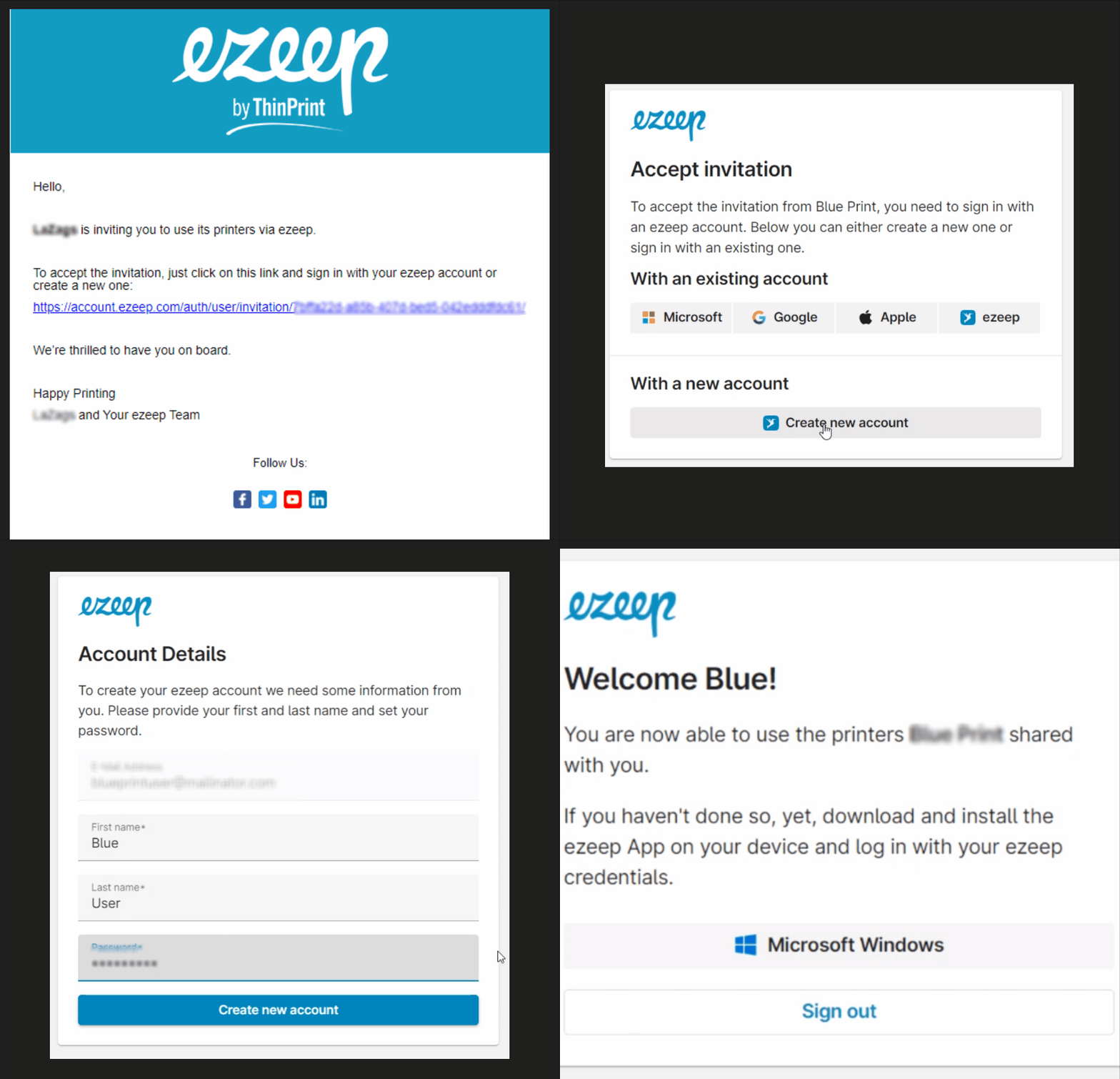
Existing ezeep account with another organization:
- Open your e-mail with the invitation to ezeep.
- Click on the link in the email to accept the invitation
- Click on “With an existing account” and follow the instructions
- You can now accept the invitation using your usual ezeep login method: Email address/password, Microsoft, Google or Apple login.
For future logins to the ezeep portal, the ezeep print app or the ezeep printer app for mobile devices, you can choose which of your ezeep organizations you would like to log in to.
You are ready to print with ezeep! First, get familiar with the User Portal see link: ezeep User Portal
Note: If you have inadvertently created a new ezeep account as an administrator instead of accepting the invitation from your organization, please send an email to helpdesk@ezeep.com. Our customer support team will assist you in removing the organization created in error.